 ]]>
]]>The Siebel upgrade project typically consists of numerous iterations even before the actual development and bug fixes take effect. It is wise to follow the age old adage, measure twice cut once. It makes practical sense to not upgrade the development instance till the upgrade team is absolutely sure of the upgrade process itself, since there will be slight variations depending on the level of customization on the existing application. More importantly, since the upgrade itself is fairly time consuming, there may still be development ongoing on the previous versions.
To minimize the risk, it is a good idea to create a new instance before the start of the upgrade project. How this helps is in two distinct ways:
- The new instance can be used as a sandbox instance with a pure vanilla version of Siebel running on it. This is important to identify how the existing customized application fares against the existing vanilla instance. The sandbox can also assist business analysts in demonstrating the vanilla functionality to the business groups. This assists in removing unnecessary customizations from the application.
- In the event that a decision is taken to perform an in place upgrade this instance should be the first place an upgrade is performed, so that the existing development instance can be shielded against the upgrade project.
To further reduce risks and minimize costs it is advisable to move towards a cloud based provider to either:
- Prepare a Sandbox
- Prepare an instance for the initial upgrade.
For the purpose of the Siebel Sandbox or the temporary development instance we will be requiring the following architecture:
- Server 1: Siebel Web Server, Siebel Gateway Server.
- Server 2: Siebel Database, Siebel Application Server
- Server 3: Siebel Tools, Siebel Web Client, Siebel Application Server.
Going by past experience on multiple Siebel upgrade projects, the flexibility and the cost benefit offered by the Amazon Web services (AWS) EC2 infrastructure cannot be ignored. This article focusses primarily on how to setup and configure an Amazon EC2 instance and prepare it to work with Siebel. That said, this article can also be used to setup amazon instances for any application and not necessarily Siebel.
The first step, obviously is to logon to http://aws.amazon.com and sign up. You will also be required to setup some kind of a payment method. Most corporate users will have logins provided by amazon which should be used to setup the instances. . Individual users on the other hand would definitely be required to set up a payment method before the instance can be setup.
Once the logon is done the AWS services page opens up.
Creation of the instances
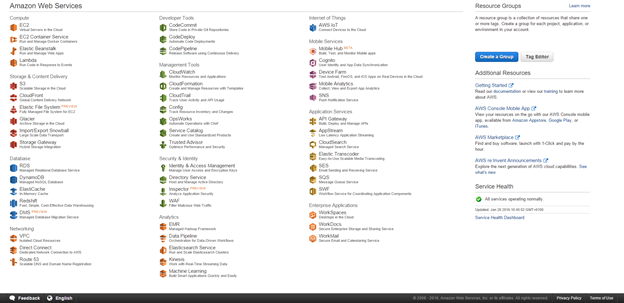
Click on EC2
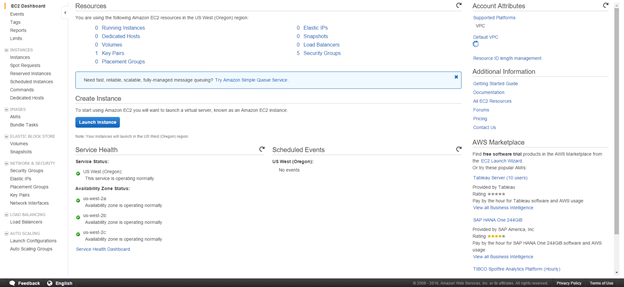
Click on Instances
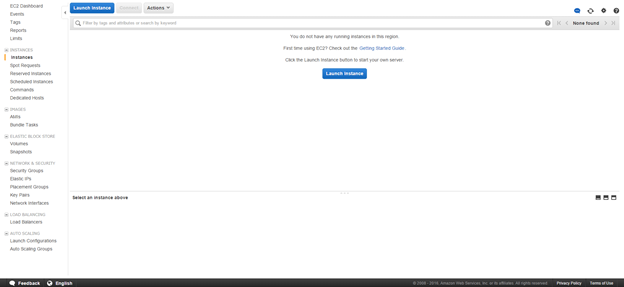
Click on Launch Instance. This is the first step in creating an Amazon Server for yourself.
Scroll down to Microsoft Server 2008 R2 Base. We need to choose Windows 2008 R2 since Windows 2012 R2 is still not supported by Siebel IP 2015.
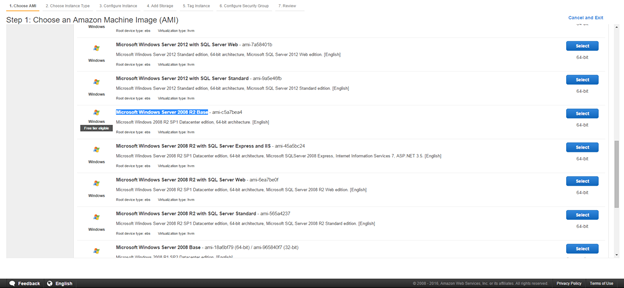
Click Select
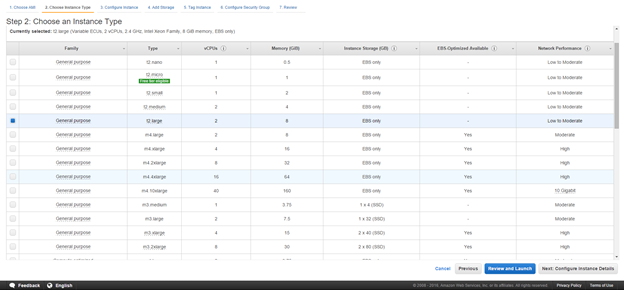
Select T2 Large and click configure instance details. This will be the database server or the Server hosting the Oracle Database which the Siebel servers will run on.
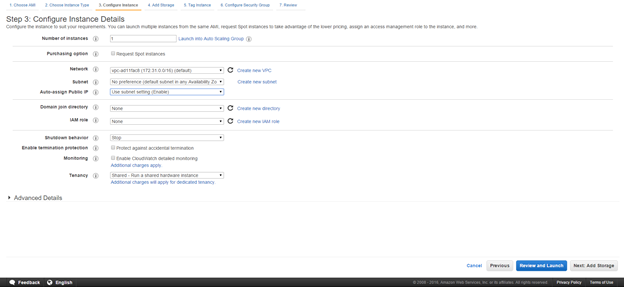
Keep the defaults and click add Storage
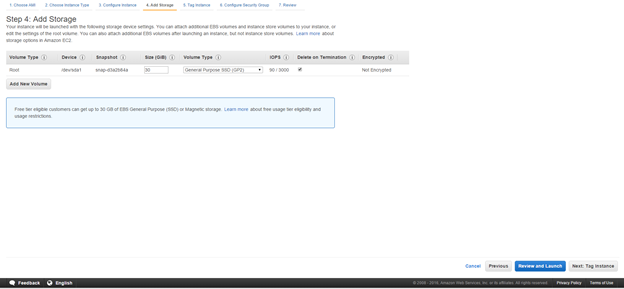
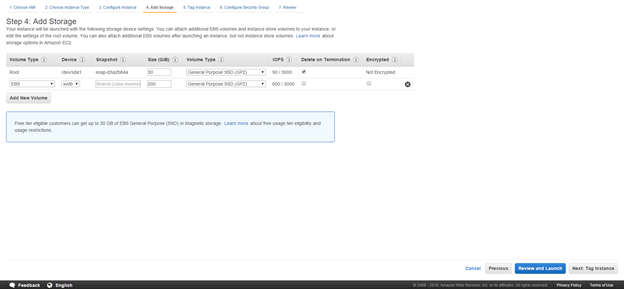
Click Add New Volume and add a 200 GB volume. For most databases this should be sufficient. 200 GB is more than sufficient for a sandbox environment. In the event that an in place upgrade is being performed, most development databases rarely reach 200 GB.
Click Tag Instance to setup a meaningful name for the instance.
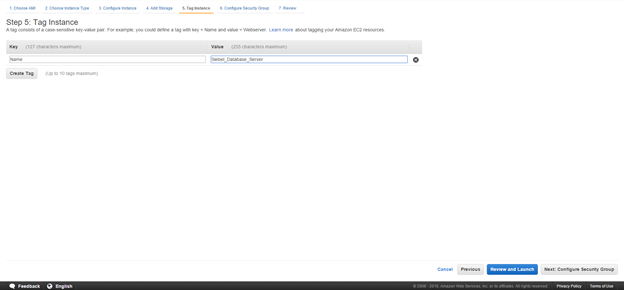
Click Next on Configure security Group. This is critical for multiple reasons:
- The security group ensures that access between the servers is free.
- Since AWS instances can be accessed by anyone across the globe, it makes sense to restrict access to specific IP addresses only.
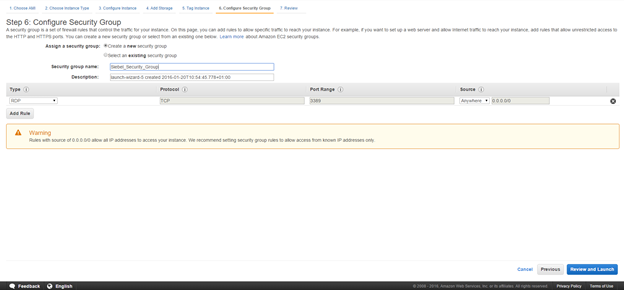
Type in a name for a new security group and click Review and Launch
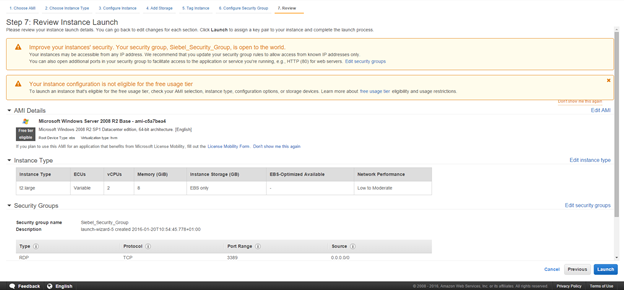
Click on Launch
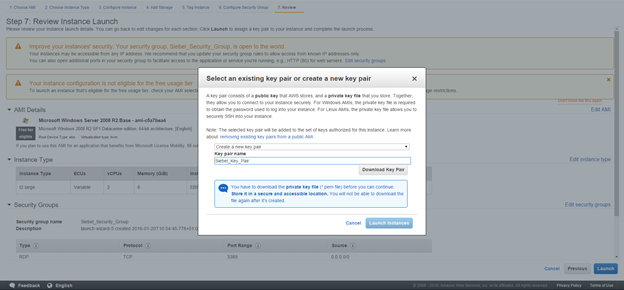
Download the Key pair. The key pair is important for getting access to the instance. Please ensure that this file is saved and stored somewhere secure.
Once downloaded launch the instance.
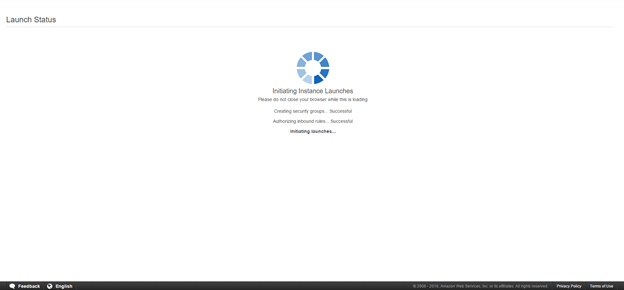
This will launch the instance.
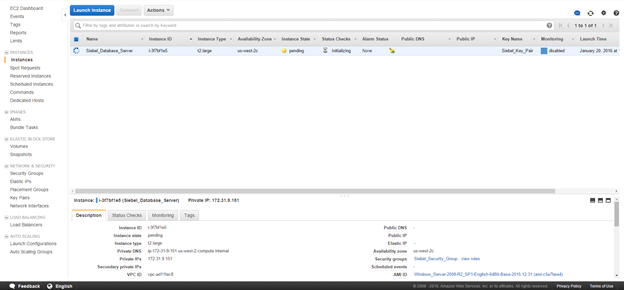
The steps need to be repeated for 2 more servers. However the specifications can be slightly lower for them.
Click on Launch instance again.
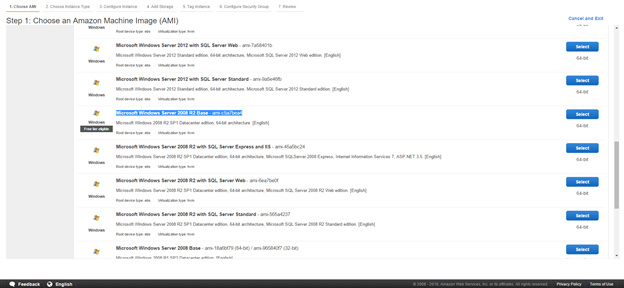
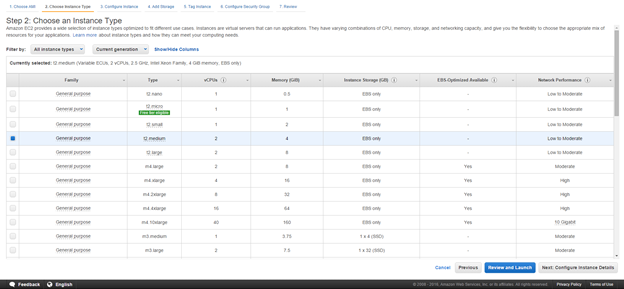
Choose T2 medium since the other two servers on the instance do not need an extremely high processing power or memory.
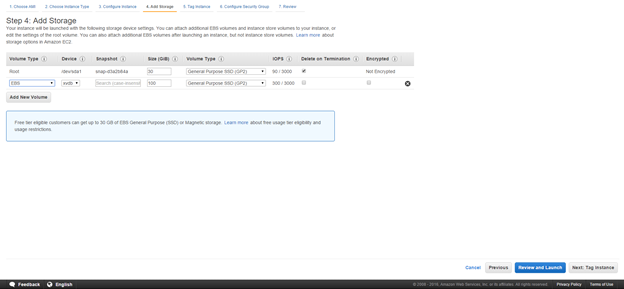
Since these servers are lower end, 100 GB of disk space is more than sufficient. Please note that the virtual disks are charged separately and hence we should use only as much as necessary.
Tag the instance as required.

While configuring the security group for the next 2 servers, we pick the security group created during the first server setup instead of creating a new one. We need to ensure that we select “Select an existing security group” so that all the security groups are displayed.
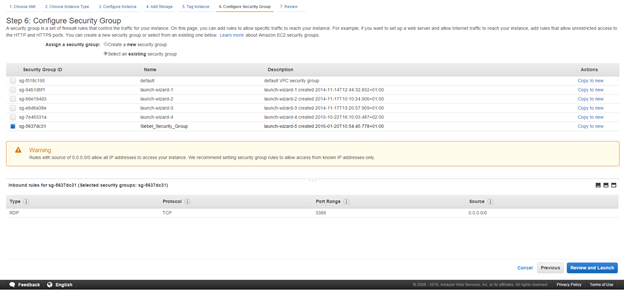
Once done, we review the configuration.
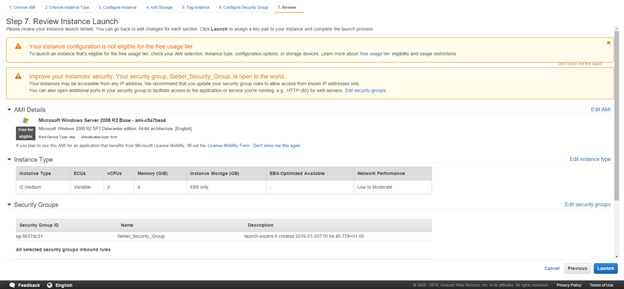
Click on Launch. This time around, we do not create a new key pair and instead select choose an existing key pair and pick the key pair from earlier.
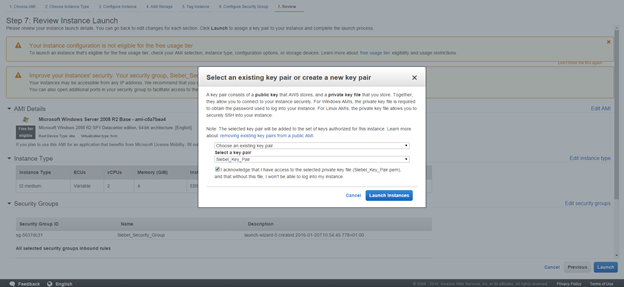
Now we can launch the instance.
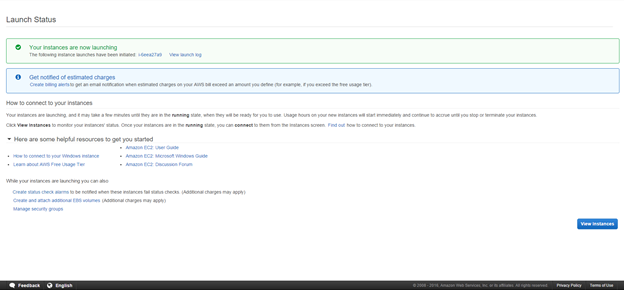
We need to repeat these steps for another instance which will be the last server. At the end of the exercise there should be 3 servers.
- Siebel Database Server
- Siebel Web_Gateway_Server
- Siebel_Application_Server.
The same will be visible in the instances screen.
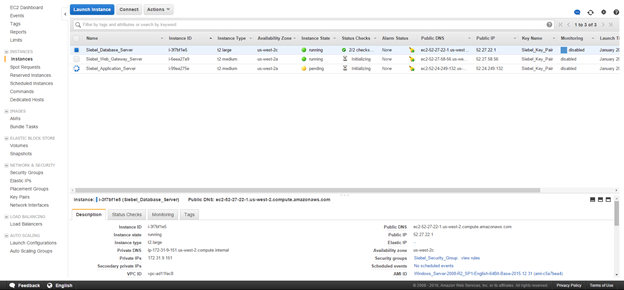
Wait for all the servers to get into a running state.
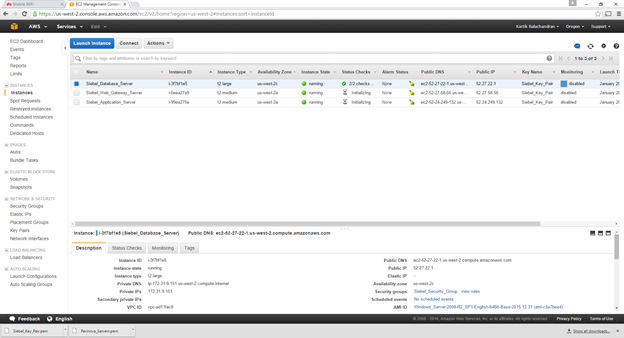
This concludes the creation of the instances.
Setting up of the Elastic IP
The elastic IP is a static public IP address allocated to your instance. This is mandatory for atleast the webserver. While all servers by default have public IP addresses allocated, these change with every reboot. Elastic IP addresses on the other hand do not change.
Click on Elastic IP’s. 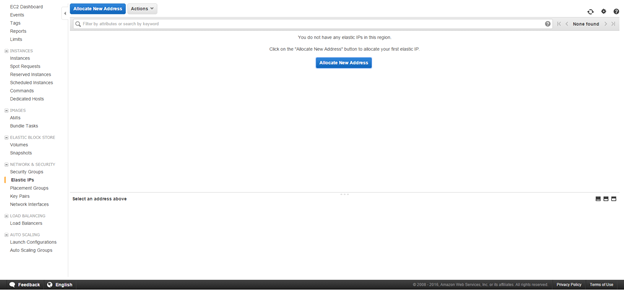
Click on Allocate new Address
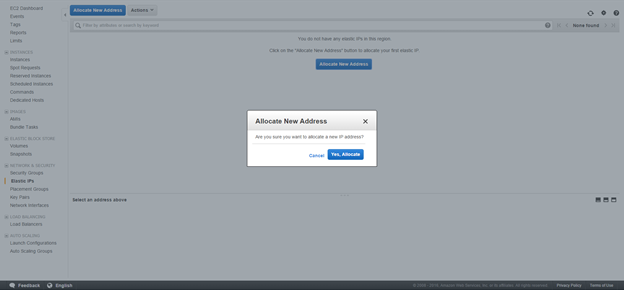
Click Yes
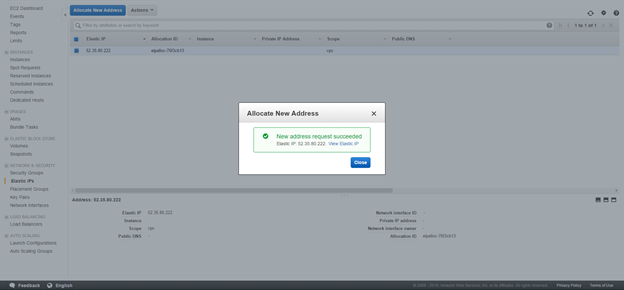
We now need to associate the newly created elastic IP address to the server designated as the webserver.
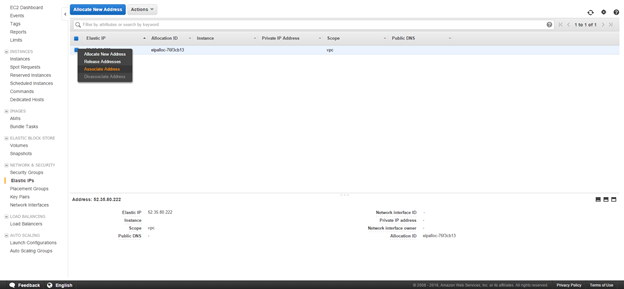
Right click and click on associate IP address
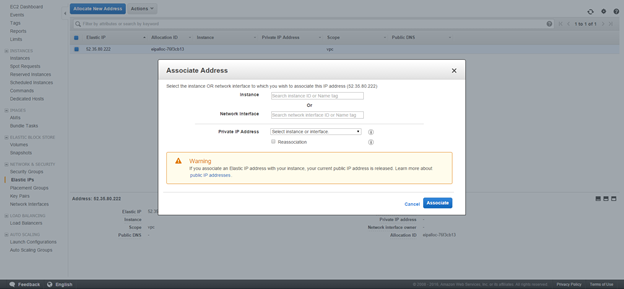
Click on Instance. This gives a list of all the instances created in the first steps.
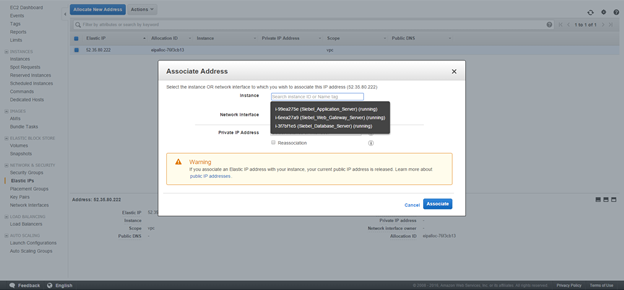
Select the server tagged as the webserver.
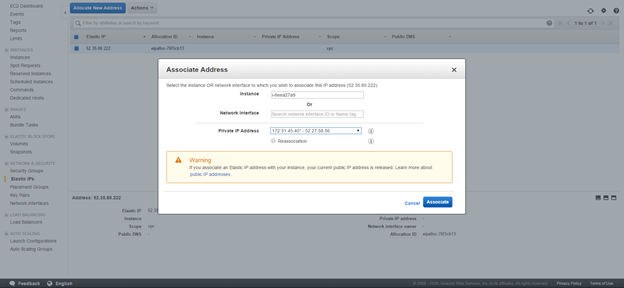
Click on Associate
This concludes the association of the Elastic IP address to the webserver.
Documentation
Navigate to instances
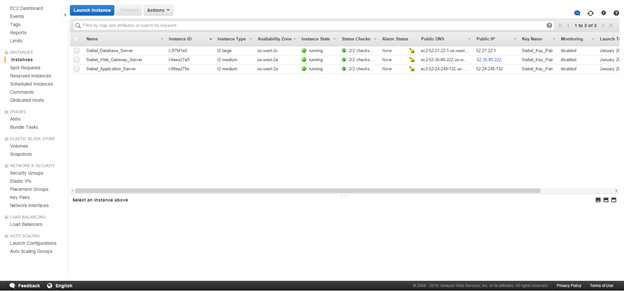
Note down the Name, the instance ID and the Private IP address of each instance. The private IP address can be found by selecting the instance. Please note that the private IP addresses do not change with reboots and these are important since the servers communicate amongst each other using the private IP addresses.
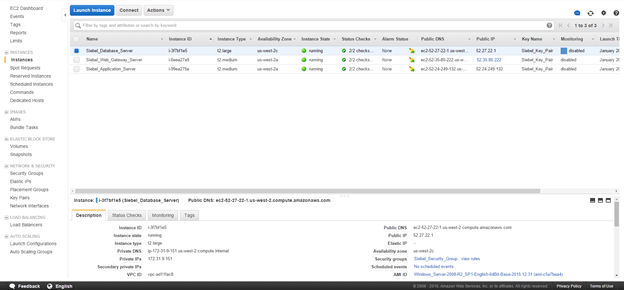
Configuring the security group.
Navigate to Security Group
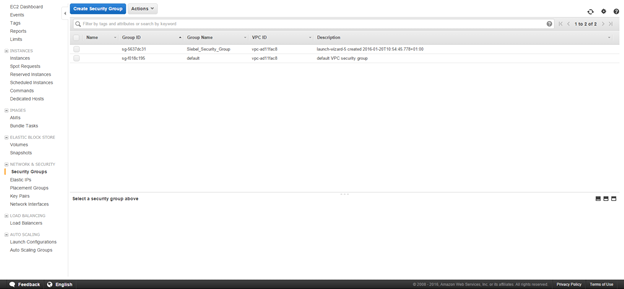
Select the security group and copy the group ID as shown below.
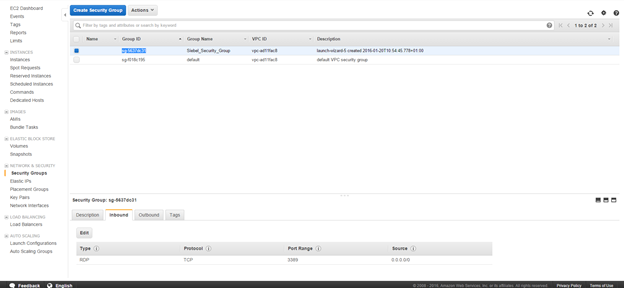
Choose inbound and click on Edit
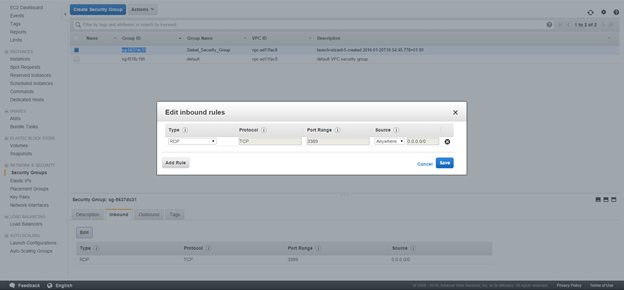
Click on Add Rule
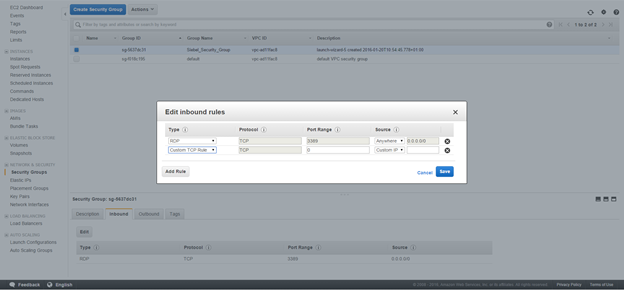
Choose All Traffic in type and Custom IP in source as shown below. Paste the security group name as shown.
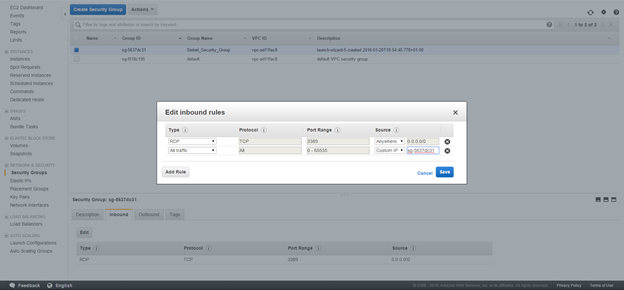
Click on Save. This will allow traffic between the servers. The outbound traffic by default is set to all IP’s.
Add similar rules for HTTP and HTTPS , but from all IP addresses. Please do keep in mind that this will allow traffic from everywhere to the servers. You can also restrict access if required here.
Once completed the structure should look like below:
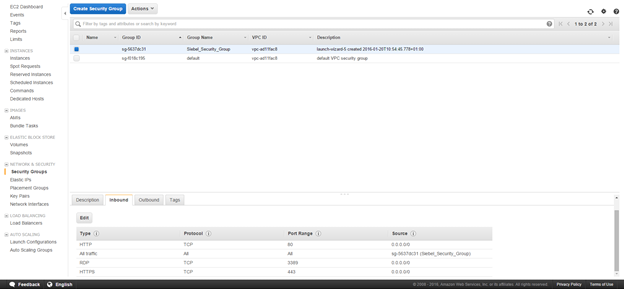
This structure will ensure HTTP, HTTPS and RDP traffic from anywhere and will block all other traffic.
This concludes the configuration of the security group.
Getting the windows password and logging on.
Go back to the instances
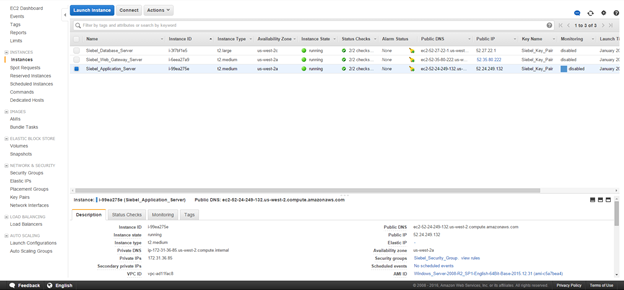
Right Click on a single instance
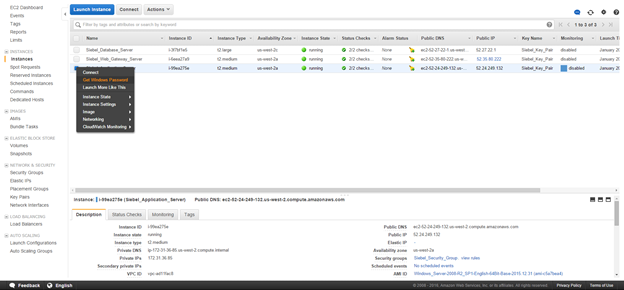
Choose Get Windows Password
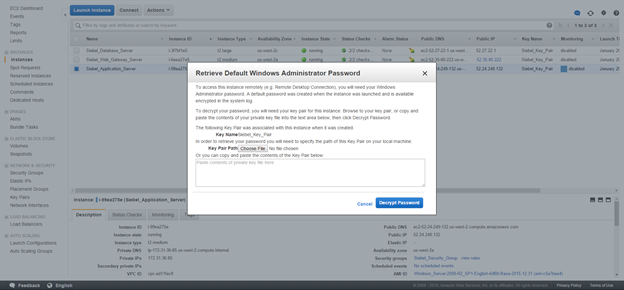
Choose the path to the key pair created earlier.
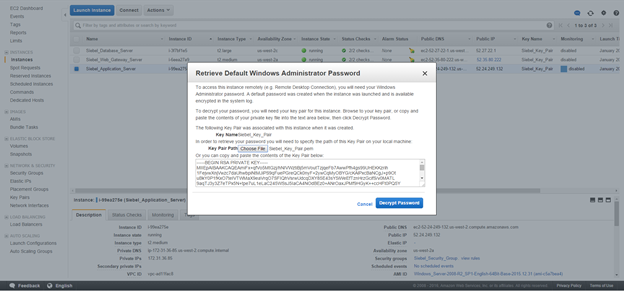
Click on decrypt password
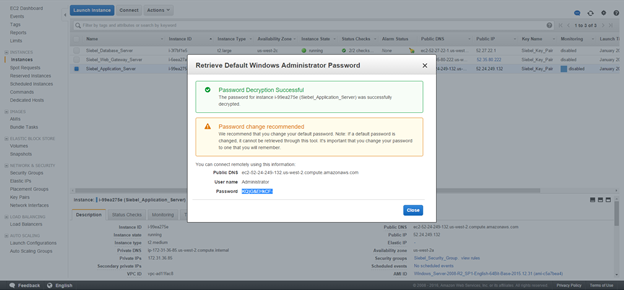
This will give you the Administrator password. Make sure this is saved in the documentation created earlier.
Repeat the same steps for the other servers to retrieve the relevant windows administrative passwords.
Connection to the servers.
Open a terminal services connection
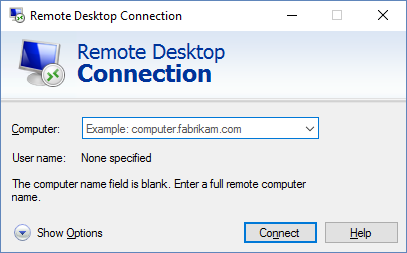
Put the Public IP address for the elastic IP created.
Logon using administrator and the password which was created. Once logged on note the hostname for the server as well. This will be required for future steps.

Now connect to the other servers using terminal services and their Public IP addresses. The current Public IP can be found from the console. Please note that this IP address, since it is not an elastic IP will change every time the servers are rebooted.
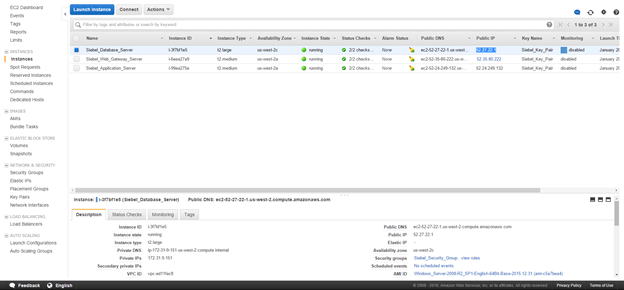
After you have successfully logged on to all the servers , it makes sense to change the windows administrator password to the same one for all the servers. While this is a security hazard, it helps to maps shared folders without putting in the administrative password every time.
Configuring the Windows Firewall.
The following steps are required so that the servers can communicate amongst each other. By default the windows firewall is switched on and blocks pretty much all the ports between the servers so it will not be possible for the Siebel Application servers to communicate amongst each other.
Bring up the Windows Firewall Administration
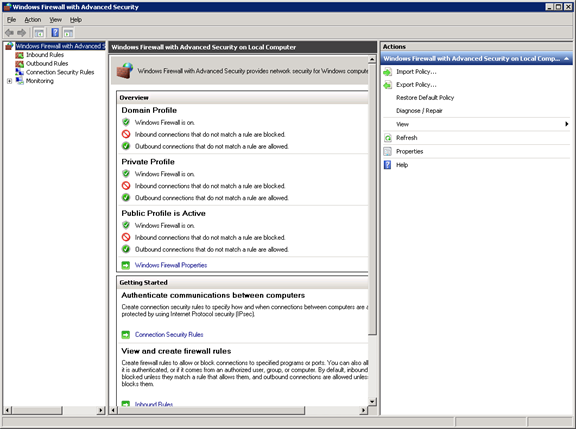
Select inbound rules:
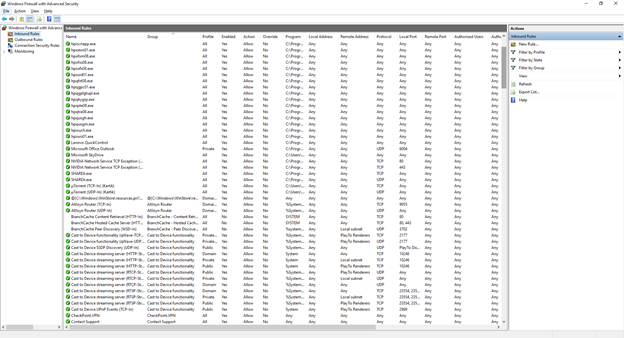
Click on New Rule
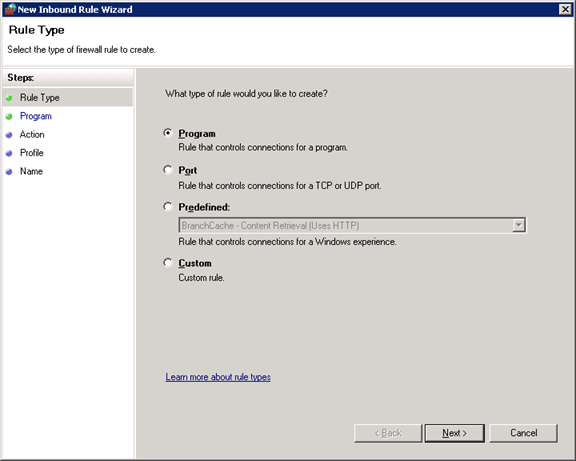
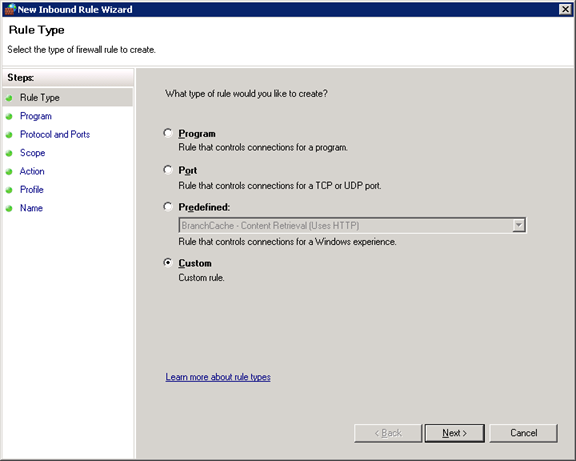
Click on Custom and click next
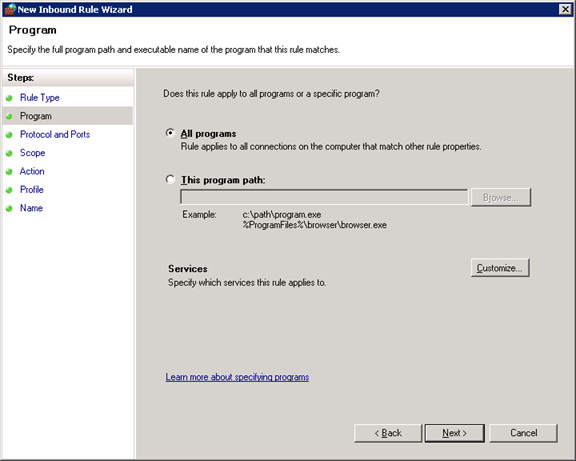
Choose all programs and click next
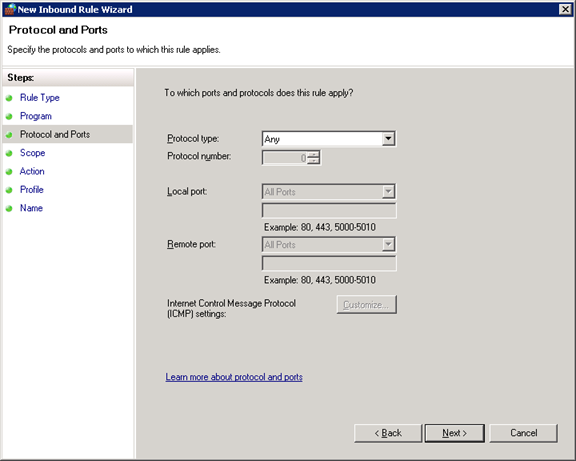
Choose “Any” for Protocol Type and click on next.
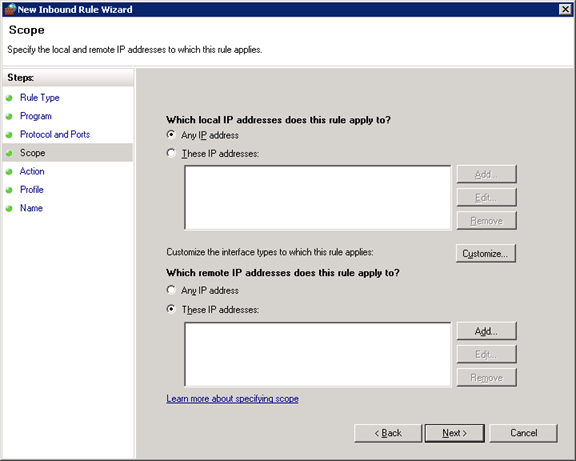
For security purposes choose “These IP addresses” for the remote IP and click on Add
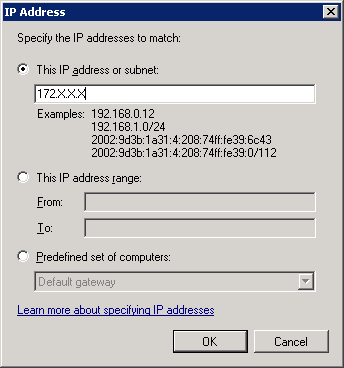
Put down the 172.X.X.X IP addresses which were noted down during the initial documentation. The same step needs to be repeated for all the internal IP addresses which exist in the environment.
Once done, click on next.
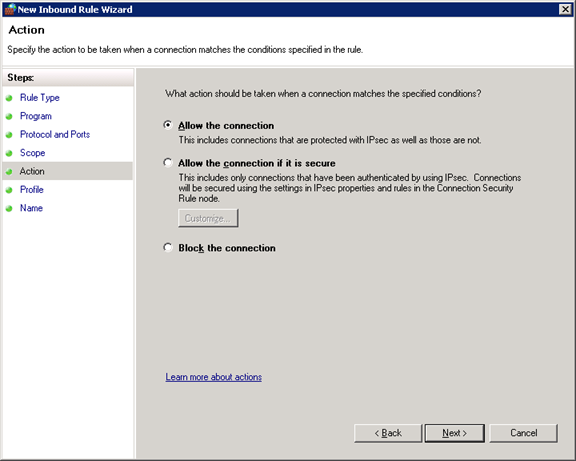
Choose Allow the Connection and click on next.
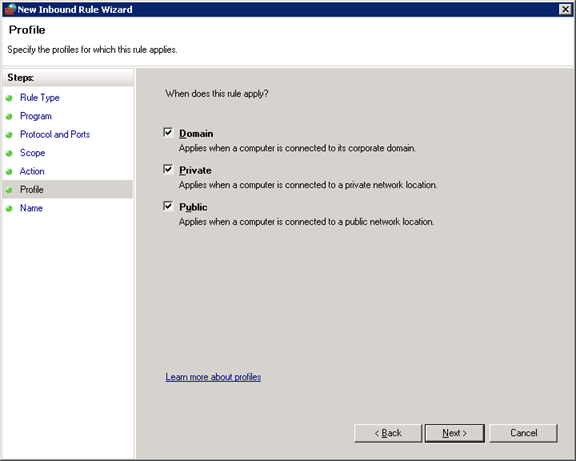
Choose all 3 options and click on next.
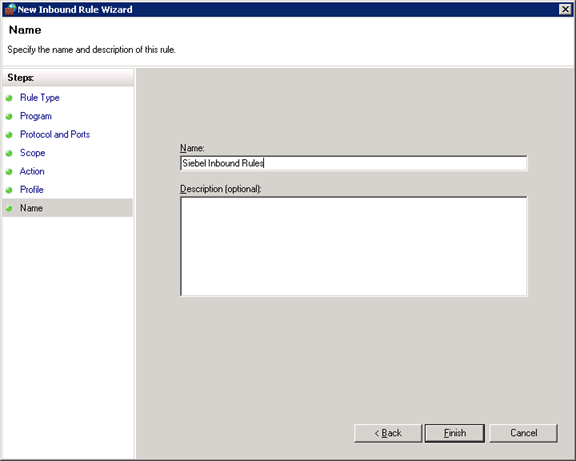
Type a meaningful name for the Rule and Click finish.
The same steps above need to be completed for Outbound rules.
These rules need to be created across all servers. The easy way is to create the rules on one server and just copy it across to the other servers (The ideal usage of a ctrl+C and ctrl+V).
Once these steps are completed. The servers will be able to communicate amongst each other across all the ports.
Editing the hosts file.
Since the Amazon EC2 instances are automatically assigned their internal IP addresses and there is no DNS setup involved, we need to go back to basics to ensure that the servers can be accessed by their hostname or IP address and are capable of translating the two.
Navigate to C:\Windows\system32\drivers\etc
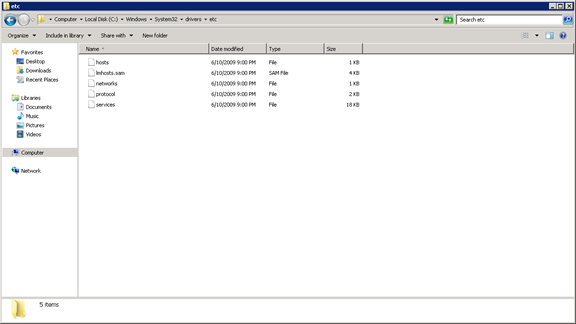
Double Click on the hosts file. This file can be opened by notepad.
The hosts file has the following structure:
# Copyright (c) 1993-2009 Microsoft Corp.
#
# This is a sample HOSTS file used by Microsoft TCP/IP for Windows.
#
# This file contains the mappings of IP addresses to host names. Each
# entry should be kept on an individual line. The IP address should
# be placed in the first column followed by the corresponding host name.
# The IP address and the host name should be separated by at least one
# space.
#
# Additionally, comments (such as these) may be inserted on individual
# lines or following the machine name denoted by a ‘#’ symbol.
#
# For example:
#
# 102.54.94.97 rhino.acme.com # source server
# 38.25.63.10 x.acme.com # x client host
# localhost name resolution is handled within DNS itself.
# 127.0.0.1 localhost
# ::1 localhost
Edit the file so that at the end of the file the IP address and the host names for all the servers documented earlier are entered. Once the edited the hosts file should look like below:
# Copyright (c) 1993-2009 Microsoft Corp.
#
# This is a sample HOSTS file used by Microsoft TCP/IP for Windows.
#
# This file contains the mappings of IP addresses to host names. Each
# entry should be kept on an individual line. The IP address should
# be placed in the first column followed by the corresponding host name.
# The IP address and the host name should be separated by at least one
# space.
#
# Additionally, comments (such as these) may be inserted on individual
# lines or following the machine name denoted by a ‘#’ symbol.
#
# For example:
#
# 102.54.94.97 rhino.acme.com # source server
# 38.25.63.10 x.acme.com # x client host
# localhost name resolution is handled within DNS itself.
# 127.0.0.1 localhost
# ::1 localhost
172.X.X.X WIN-ABCD
172.X.Y.Z WIN-DEFG
172.X.Z.Y WIN-JKLM
Replace the IP Addresses and the hostnames with the relevant entries.
Copy the edited hosts files to all the servers to the same location so that all servers have the same copy of the hosts file.
If this step is completed successfully, you should be able to ping the hostname for all the servers.
This completes the Amazon instance setup.
]]>The classic chicken and egg situation arises since Oracle supports only IE 8.0 with the Siebel High interactivity framework, while Microsoft ended support for IE 8.0 ages ago. Making matters worse was the end of life for Windows XP in 2014 which was the last operating system which had IE 8.0 installed. The end of life for Windows XP essentially meant that the customers had to move to Windows 7, which never had IE 8.0. While there were ways of installing IE 8.0 on the windows 7 operating system, this neither makes sense, nor is it well appreciated by the IT teams in various organizations.
The ideal solution for this scenario is for the customers to upgrade and migrate to Siebel Open UI. This however is not a small or a cheap task.
However, there are ways to make the Siebel high interactivity client work with IE 9 and higher. For IE versions 9.0 and 10, the IE 7 Standards mode can be enabled. For IE versions 11 and the new edge browser, in addition to the IE 7 standards mode, The Enterprise mode website list is also available.
The standards mode is nothing more than running a website in the Internet Explorer Compatibility Mode. The problem with enable the IE 7 standards mode is the fact that all the websites will be rendered in the mode. This will definitely give problems for websites which are designed using newer internet standards.
Enabling the IE 7 Standards mode.
Enabling the IE 7 standards mode is fairly simple.
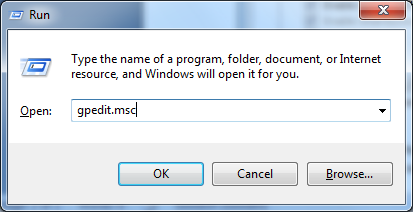
Bring up the group policy editor by typing gpedit.msc.
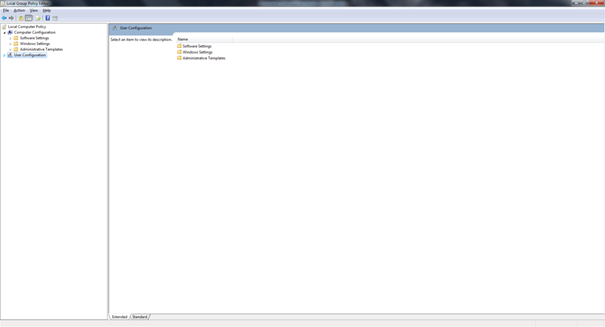
The Local Group policy editor will open up as shown below.
Navigate to User Configuration-Administrative templates-Windows Components-Internet Explorer-Compatibility View as shown in the image below.
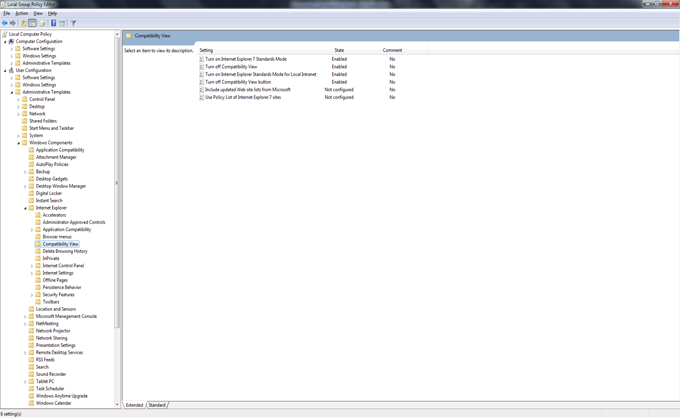
Ensure that the following options are enabled as shown in the image above:
- Turn on Internet Explorer 7 Standards mode.
- Turn off Compatibility View.
- Turn on Internet explorer standards mode for Local Intranet.
- Turn off Compatibility View button.
This will enable the IE 7 Standards mode for all websites. Using this will make the Siebel application behave itself on the IE 9 and IE 10.
Using the Enterprise Mode for IE 11 and the Edge Browser.
While the IE 7 standards mode is a decent workaround, the Enterprise mode is a much better solution as it offers a selection of websites which be rendered using the enterprise mode. More importantly this list of websites can be managed centrally and the policy setting just needs to point to the xml file holding these websites. To create the website list the Enterprise Mode Site List manager tool needs to be downloaded from Microsoft (https://www.microsoft.com/en-us/download/details.aspx?id=49974) .The tool essentially creates a list in the v2 XML schema.
To enable the Enterprise mode, the following steps need to be followed.
Bring up the group policy editor
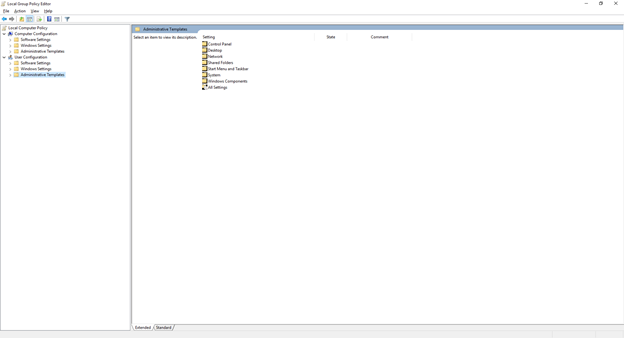
Navigate to Navigate to User Configuration-Administrative templates-Windows Components-Internet Explorer and select the “Use the Enterprise Mode IE website List”
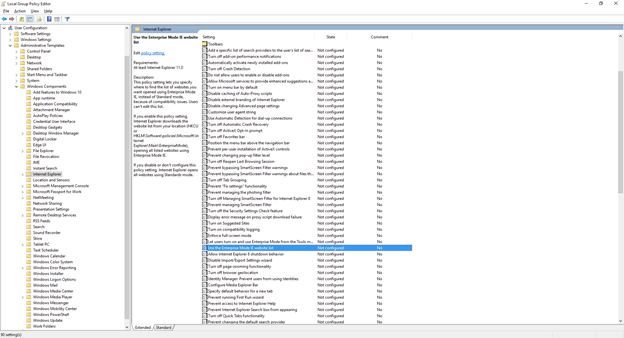
Open the setting and enable it.
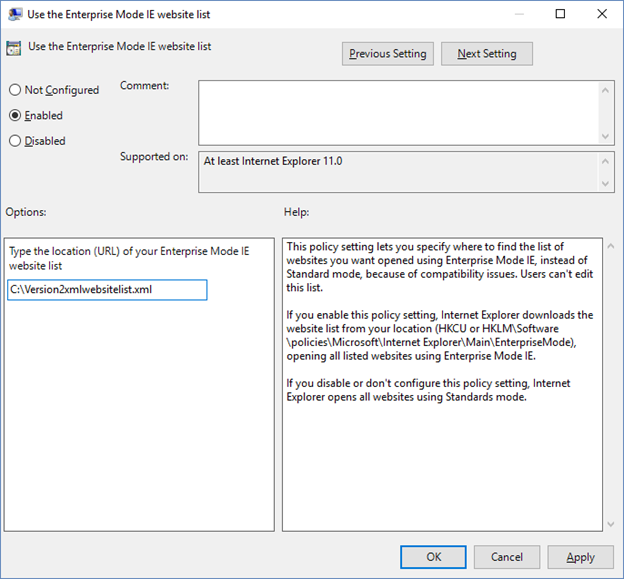
The website list needs to point to the file created using the tool as described earlier.
These 2 methods will allow a customer to run Siebel in later versions of IE till the actual upgrade is completed and Siebel Open UI is deployed.
The key thing which needs to be understood is that this is only a workaround and not a final solution. There are a lot of known issues with Siebel running on versions of IE other than IE 8.0. However, after applying the workarounds, most of these issues occur quite rarely. Some of these are mentioned below:
Crashes:
- While doing File –> Logout , Application crashes
- If a modal confirm box is called from a pick/MVG applet, the Siebel application crashes (hangs and doesn’t respond). User has to end and restart the Siebel session.
Functional Issues
- Attached Network File URL’s do not work.
- Keystrokes not registering as input in UI.
- When the Mouse is over a Hyperlink, it is not changing to “Hand” sign, it stays as it is.
- When using short keys (like Ctrl+Alt+K) short cut keys only work intermittently.
- Pick List or MVG Applets not closing by X button.
Focus, formatting issues & Error messages
- When there is a delay in response, Intenet Explorer shows a message indicating that the server is not responding with a button offering to recover the session.
- Various UI related error messages in the UI such as “The applet field with name “s_1_2_45_0″ doesn’t exist(SBL-UIF-00289)”
- A modal confirm box, when invoked from a form or list applet, disappears in the background. User has to minimize all windows and find the pop up window to proceed ahead with their task.
- When trying to open a MVG applet the pop-up applet appears in small size in top left
References
Oracle Support Document 1627168.1: https://support.oracle.com/epmos/faces/DocumentDisplay?id=1627168.1 (Requires Oracle Login)
Enterprise mode for IE 11 and Edge Browsers: https://technet.microsoft.com/en-in/library/dn640699.aspx
]]>