Traditionally Siebel has been an application heavily dependent on ActiveX controls. Oracle offers a lifetime support on any Siebel version post version 8.0 (Launched in February 2007). As of Siebel 15 (Innovation Pack 2015), almost all of the Active X controls have been replaced by java scripts as a part of the Open UI enablement. New customers deploying Siebel are truly browser independent, something which has taken a long time coming. However, customers on an Open UI enabled Siebel version are far too few and versions prior to IP2015, did have some amount of Active X components still left, forcing the use of the Siebel High interactivity framework , which works only with Internet Explorer. There are also a fair number of Siebel customers who are still on earlier versions of Siebel (Pre 8.1.1.10), who can work ONLY on Internet Explorer as a browser.
The classic chicken and egg situation arises since Oracle supports only IE 8.0 with the Siebel High interactivity framework, while Microsoft ended support for IE 8.0 ages ago. Making matters worse was the end of life for Windows XP in 2014 which was the last operating system which had IE 8.0 installed. The end of life for Windows XP essentially meant that the customers had to move to Windows 7, which never had IE 8.0. While there were ways of installing IE 8.0 on the windows 7 operating system, this neither makes sense, nor is it well appreciated by the IT teams in various organizations.
The ideal solution for this scenario is for the customers to upgrade and migrate to Siebel Open UI. This however is not a small or a cheap task.
However, there are ways to make the Siebel high interactivity client work with IE 9 and higher. For IE versions 9.0 and 10, the IE 7 Standards mode can be enabled. For IE versions 11 and the new edge browser, in addition to the IE 7 standards mode, The Enterprise mode website list is also available.
The standards mode is nothing more than running a website in the Internet Explorer Compatibility Mode. The problem with enable the IE 7 standards mode is the fact that all the websites will be rendered in the mode. This will definitely give problems for websites which are designed using newer internet standards.
Enabling the IE 7 Standards mode.
Enabling the IE 7 standards mode is fairly simple.
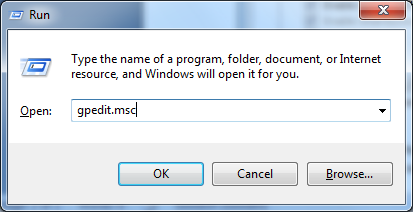
Bring up the group policy editor by typing gpedit.msc.
The Local Group policy editor will open up as shown below.
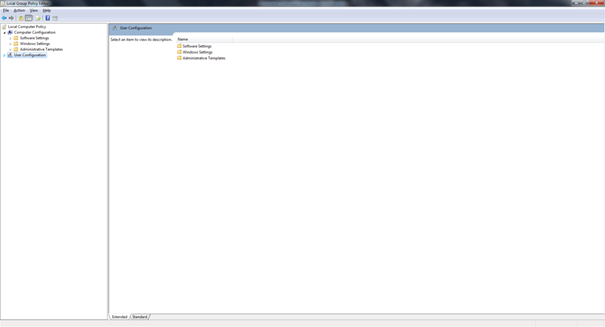
Navigate to User Configuration-Administrative templates-Windows Components-Internet Explorer-Compatibility View as shown in the image below.
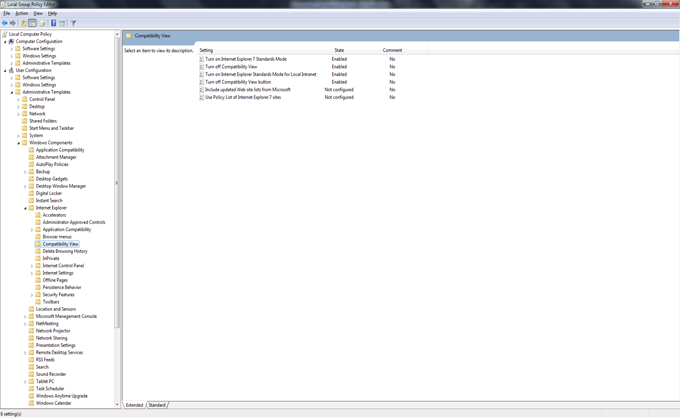
Ensure that the following options are enabled as shown in the image above:
- Turn on Internet Explorer 7 Standards mode.
- Turn off Compatibility View.
- Turn on Internet explorer standards mode for Local Intranet.
- Turn off Compatibility View button.
This will enable the IE 7 Standards mode for all websites. Using this will make the Siebel application behave itself on the IE 9 and IE 10.
Using the Enterprise Mode for IE 11 and the Edge Browser.
While the IE 7 standards mode is a decent workaround, the Enterprise mode is a much better solution as it offers a selection of websites which be rendered using the enterprise mode. More importantly this list of websites can be managed centrally and the policy setting just needs to point to the xml file holding these websites. To create the website list the Enterprise Mode Site List manager tool needs to be downloaded from Microsoft (https://www.microsoft.com/en-us/download/details.aspx?id=49974) .The tool essentially creates a list in the v2 XML schema.
To enable the Enterprise mode, the following steps need to be followed.
Bring up the group policy editor
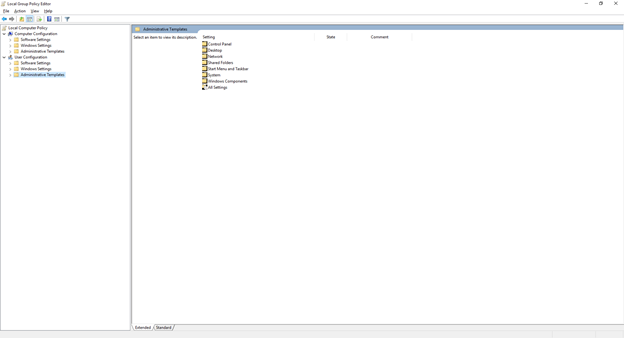
Navigate to Navigate to User Configuration-Administrative templates-Windows Components-Internet Explorer and select the “Use the Enterprise Mode IE website List”
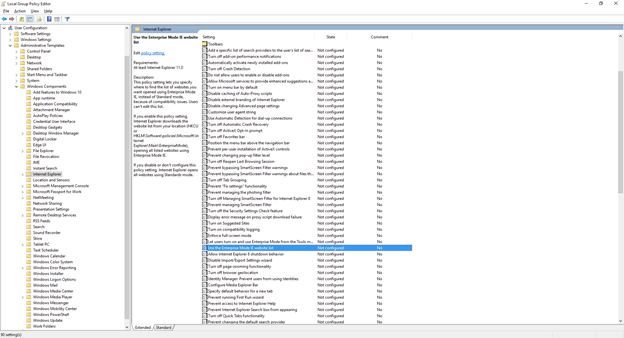
Open the setting and enable it.
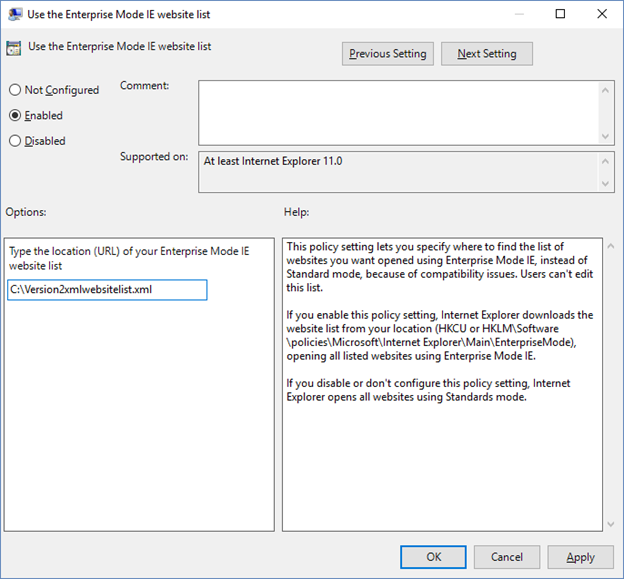
The website list needs to point to the file created using the tool as described earlier.
These 2 methods will allow a customer to run Siebel in later versions of IE till the actual upgrade is completed and Siebel Open UI is deployed.
The key thing which needs to be understood is that this is only a workaround and not a final solution. There are a lot of known issues with Siebel running on versions of IE other than IE 8.0. However, after applying the workarounds, most of these issues occur quite rarely. Some of these are mentioned below:
Crashes:
- While doing File –> Logout , Application crashes
- If a modal confirm box is called from a pick/MVG applet, the Siebel application crashes (hangs and doesn’t respond). User has to end and restart the Siebel session.
Functional Issues
- Attached Network File URL’s do not work.
- Keystrokes not registering as input in UI.
- When the Mouse is over a Hyperlink, it is not changing to “Hand” sign, it stays as it is.
- When using short keys (like Ctrl+Alt+K) short cut keys only work intermittently.
- Pick List or MVG Applets not closing by X button.
Focus, formatting issues & Error messages
- When there is a delay in response, Intenet Explorer shows a message indicating that the server is not responding with a button offering to recover the session.
- Various UI related error messages in the UI such as “The applet field with name “s_1_2_45_0″ doesn’t exist(SBL-UIF-00289)”
- A modal confirm box, when invoked from a form or list applet, disappears in the background. User has to minimize all windows and find the pop up window to proceed ahead with their task.
- When trying to open a MVG applet the pop-up applet appears in small size in top left
References
Oracle Support Document 1627168.1: https://support.oracle.com/epmos/faces/DocumentDisplay?id=1627168.1 (Requires Oracle Login)
Enterprise mode for IE 11 and Edge Browsers: https://technet.microsoft.com/en-in/library/dn640699.aspx


Leave a Reply